1. Log in to WHM:
Go to: https://your-server-ip:2087 or https://hostname:2087
Enter your root or reseller credentials.
2. Search the password modification option:
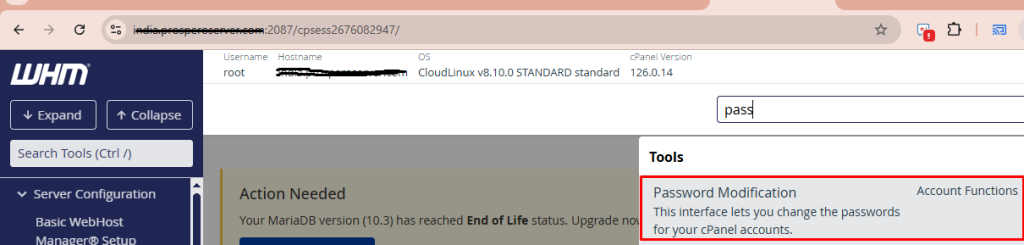
Enter the word – ‘Password’ in search box on the upper left corner of the WHM screen and click on the option ‘Password Modification’ shown below.
3. Select the Account:
You’ll see a list of cPanel accounts.
Choose the account for which you want to change the password.

4. Enter the New Password:
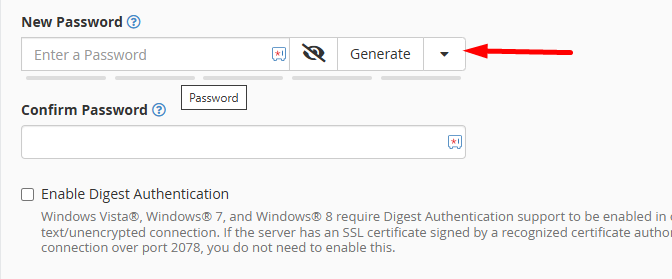
In the “New Password” field, type your desired password.
Or click “Generate” to create a strong one.
5. Confirm the Password:
Re-enter the same password in the “Confirm Password” field.
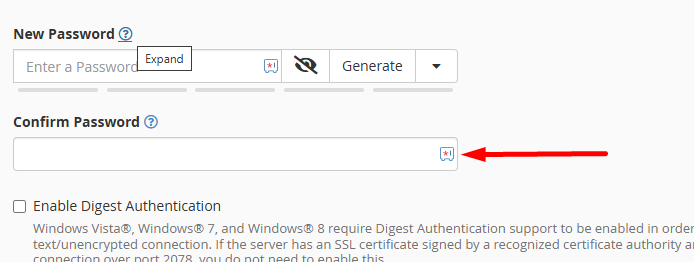
6. Enable Digest Authentication (Optional):
Check the box for “Enable Digest Authentication” if the account uses Web Disk with Windows (older Windows systems may need it).
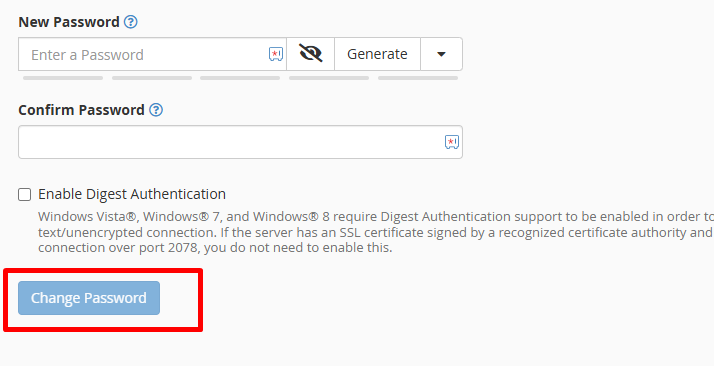
7. Apply Changes:
Click on “Change Password” to finalize the update.