
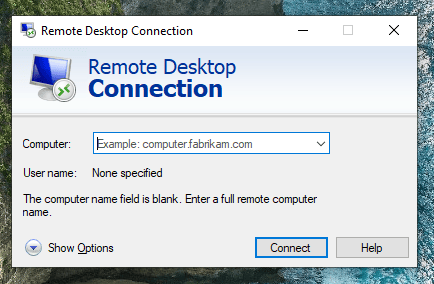
1. login to windows using RDP:
your IP ,username and password
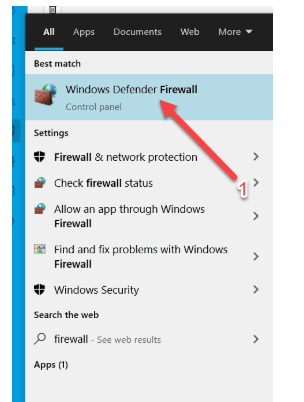
2. Open Windows Defender Firewall:
Press Win + R, type control firewall.cpl, and hit Enter.
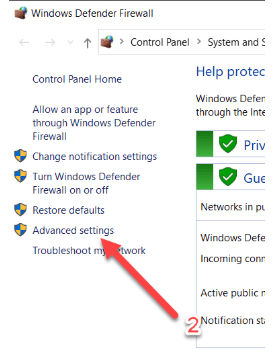
3. Advanced Settings:
On the left side, click Advanced settings to open Windows Defender Firewall with Advanced Security.
4. Create a New Inbound Rule:
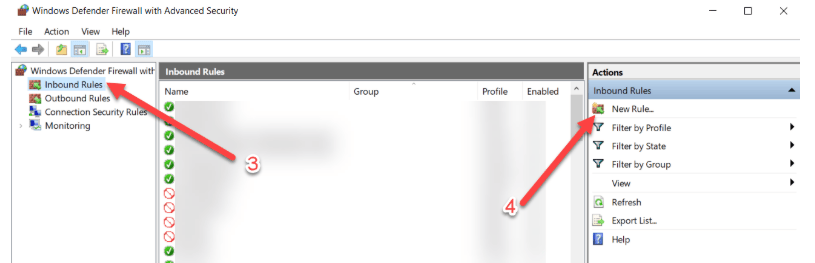
In the left pane, click Inbound Rules.
In the right pane, click New Rule…
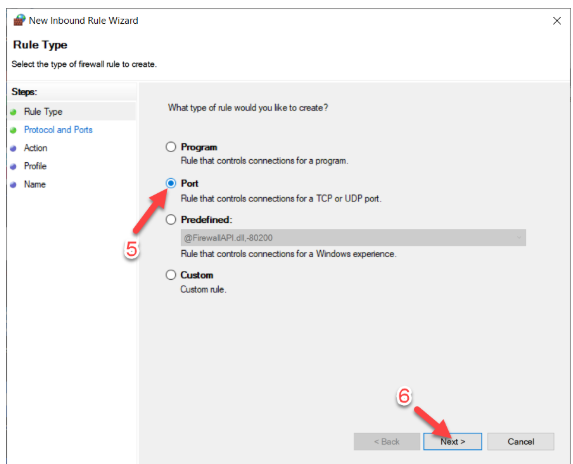
5. Select Rule Type:
Choose Port → click Next.
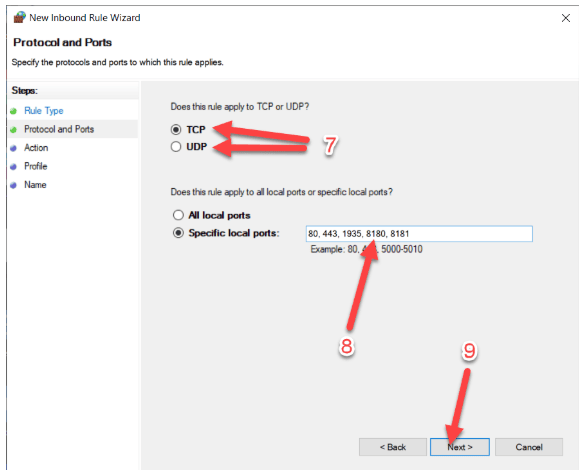
6. Select Protocol and Port:
Select TCP or UDP depending on your app (most apps use TCP).
Select Specific local ports, then enter the custom port number (e.g., 3000, 8080, etc.).
Click Next.
7. Action:
Choose Allow the connection → click Next.
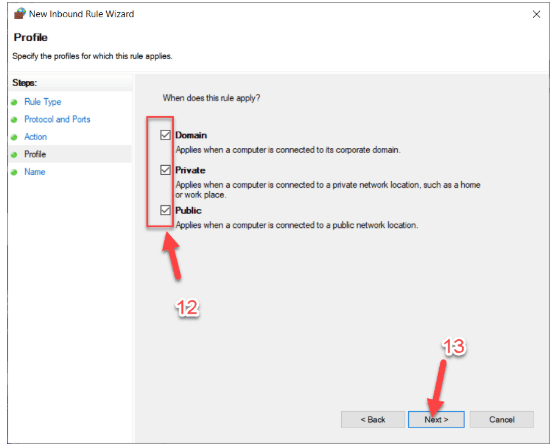
8. Profile:
Check all boxes (Domain, Private, Public) or just the ones you need.
Click Next.
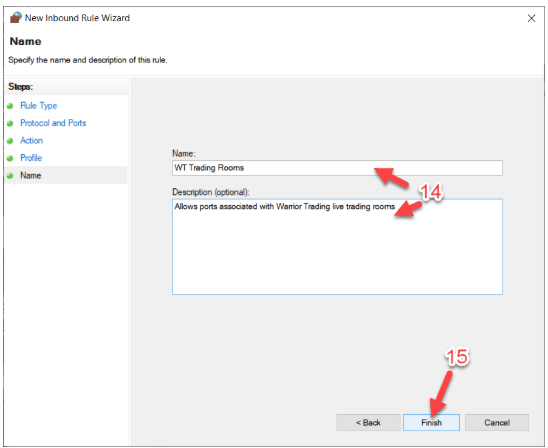
9. Name the Rule:
Give it a name like My Node.js App Port 3000 and click Finish.
Optional:
Create an Outbound Rule Repeat the same steps under Outbound Rules if your application also needs to send traffic out through the port.