
1. Log in to cPanel
Go to your cPanel login page (typically something like yourdomain.com/cpanel).
Enter your username and password to log in.
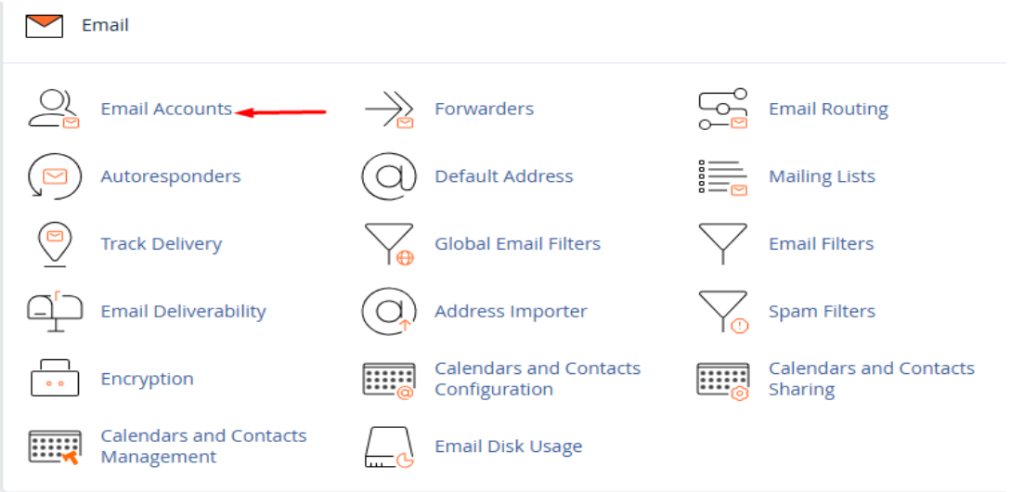
2. Navigate to the Email section
Navigate to the Email section and click on Email Accounts.
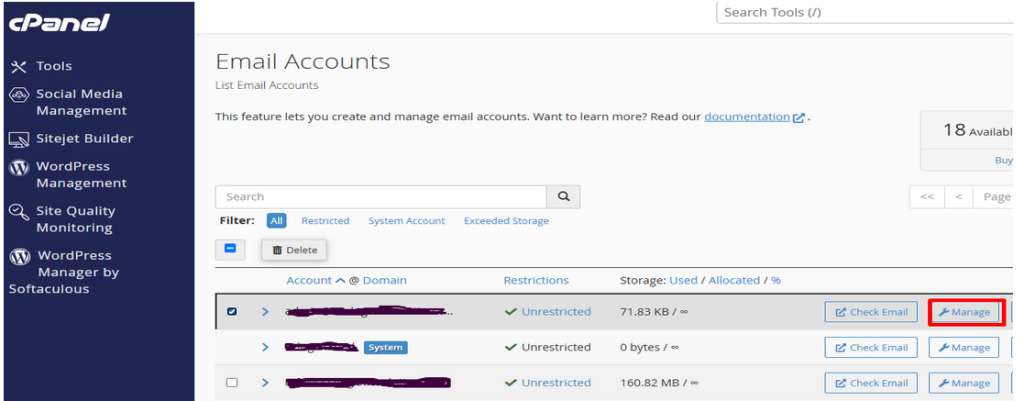
3. Locate the Email Account to Delete.
Scroll down to view the list of existing email accounts under your domain.
If you have multiple accounts, use the search bar to quickly find the email account you want to delete.
4. Click on Manage
Next to the email account you wish to remove, click the Manage button to open its settings.
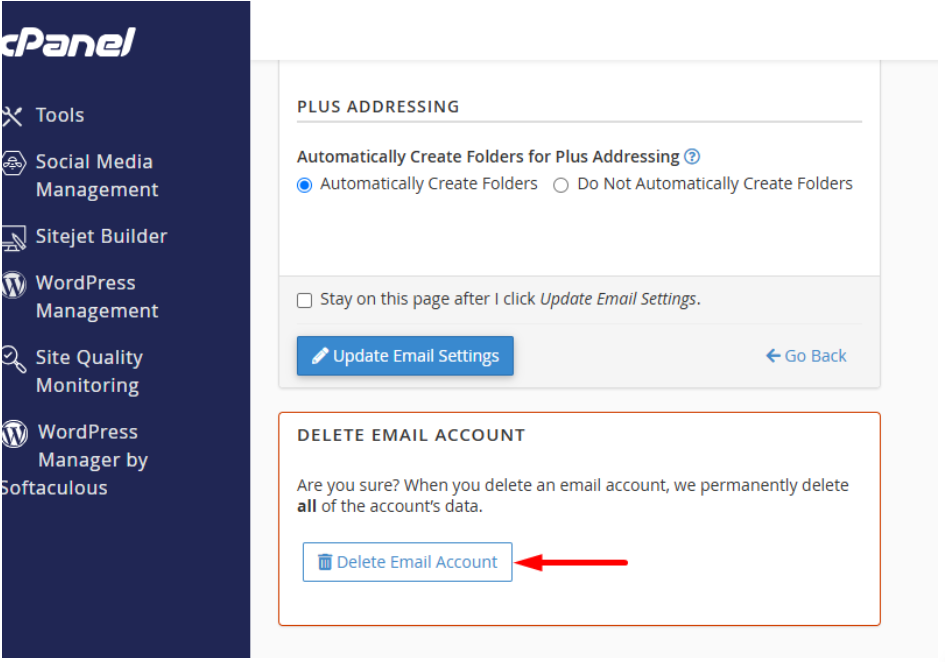
5. Delete the Email Account
Scroll down the page until you find the Delete Email Account option.
Click on the Delete Email Account button.
6. Confirm the Deletion
A confirmation prompt will appear asking if you are sure you want to delete the email account.
Click Confirm to permanently delete the account.
7. Verify the Deletion
After deleting, go back to the Email Accounts section to ensure that the email account has been removed.
Once deleted, all emails, contacts, and data associated with the account will be lost permanently.
Important Notes:
- Backup your emails before deleting if you need to keep any important messages.
- Deleting an email account does not affect your website or domain—it only removes the email associated with it.
- If you accidentally delete an email account, you may need to recreate it, but previous emails cannot be recovered unless backed up.
Now you have successfully removed an email account from cPanel! 🚀