
1. Log in to cPanel:
Go to your cPanel login page (typically something like yourdomain.com/cpanel).
Enter your username and password to log in.
2. Access Email Disk Usage:
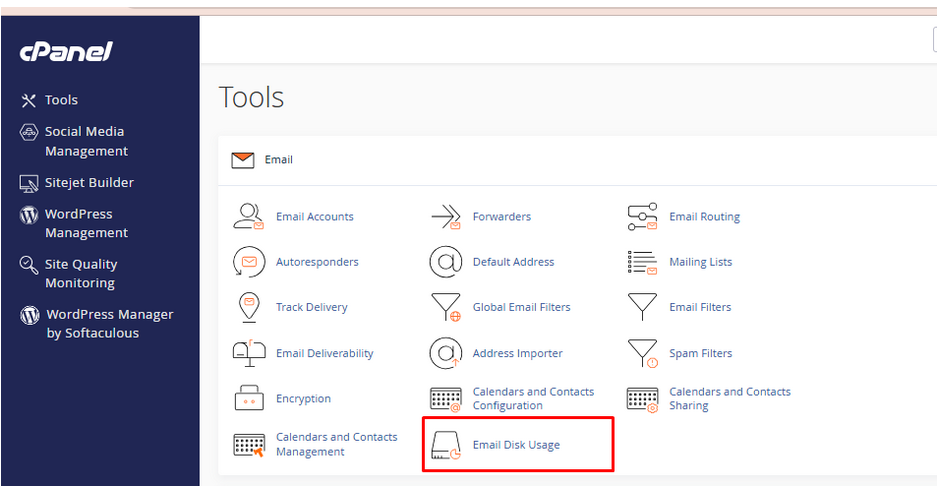
In the Email section of the cPanel dashboard, click on Email Disk Usage.
3. Select an Email Account:
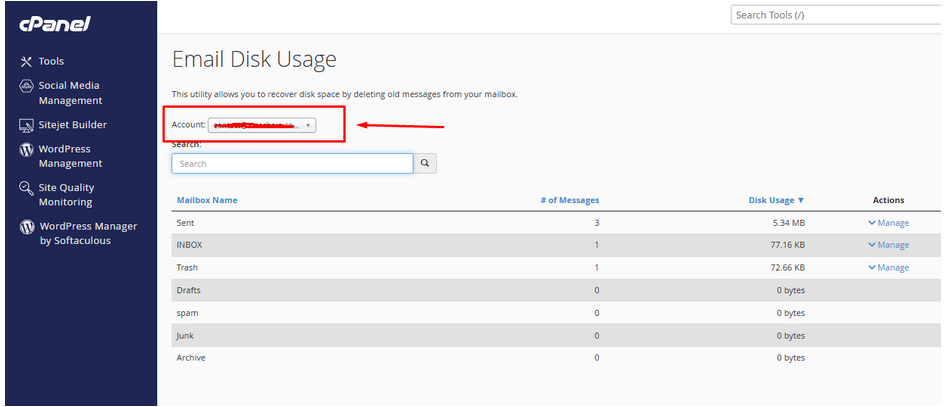
From the dropdown menu, choose the email account you want to check.
It will display the number of messages and the amount of disk space used by that account.
4. Manage and Free Up Disk Space:
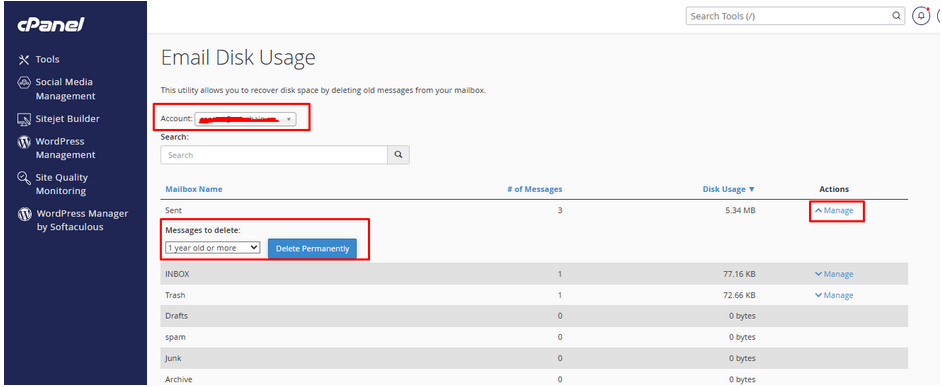
Click on the Manage button next to the email account.
5. Delete Unwanted Messages:
Under the Messages to delete section, choose a filter (e.g., “1 year old or more”, “Previously viewed”, or “All messages”).
Click Delete Permanently to remove the selected emails and free up space.