
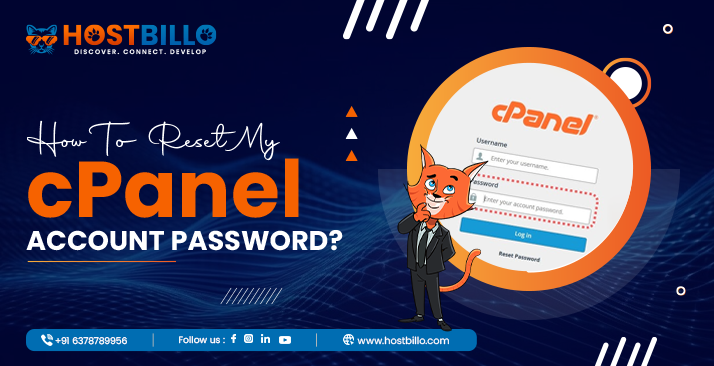
1. Go to your cPanel login URL:
Typically: https://yourdomain.com/cpanel or https://yourserverip:2083.
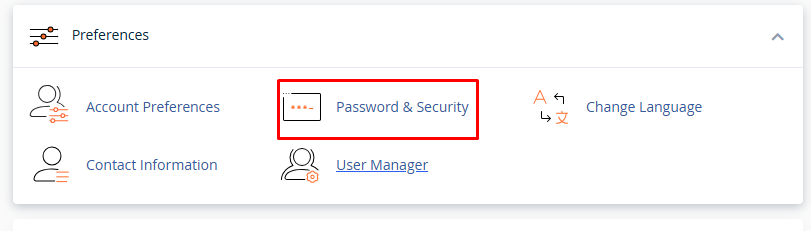
2. Navigate to “Password & Security”:
Once logged in, scroll down or use the search bar to find the “Password & Security” option under the Preferences section. Click on it.
3. Enter Your Current and New Password:
You’ll see fields to enter your old password, then create a new password.
Make sure your new password is strong—use a mix of letters, numbers, and symbols. You can also use the password generator for better security.
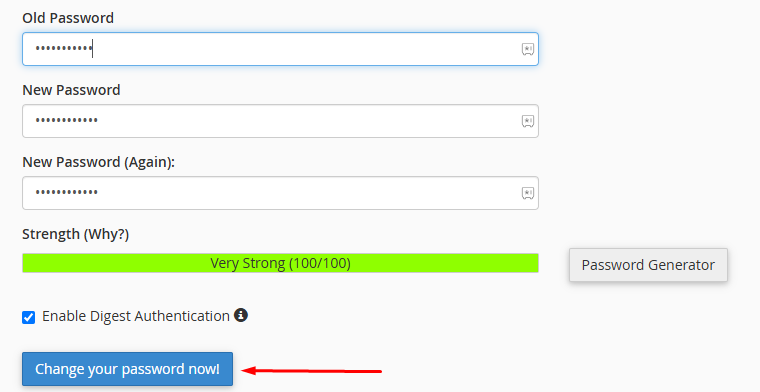
4. Click “Change Your Password Now”:
After entering the required details, click the “Change Your Password Now” button to save the changes.
✅ Your cPanel password is now updated! Be sure to use the new password the next time you log in.