

1. Log in to cPanel:
Open your web browser and visit your cPanel login page. Eg. (yourdomain.com/cpanel)
Enter your username and password to access your hosting dashboard.
2. Open File Manager:
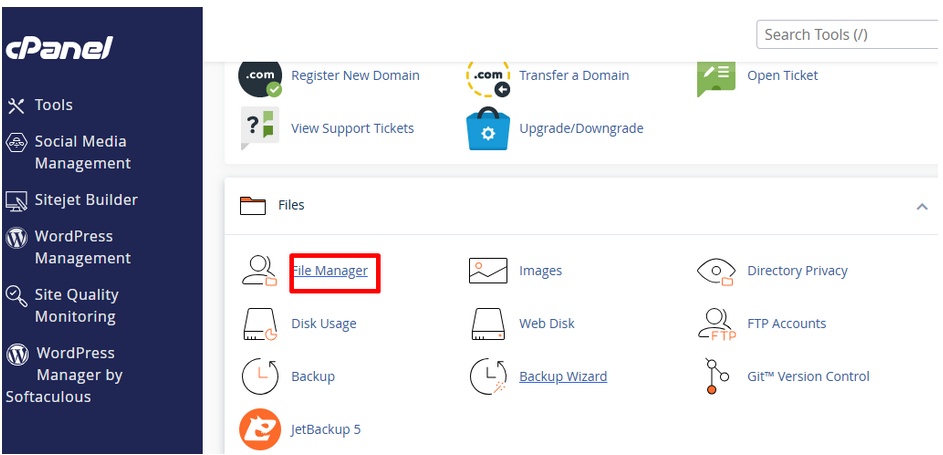
In the cPanel dashboard, locate File Manager (under the Files section).
Click on it to open.
3. Upload the File:
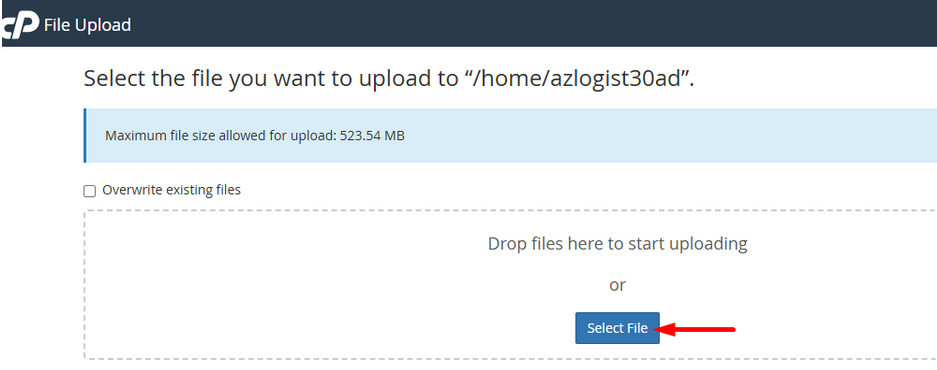
Click on the Upload button at the top.
Click Select File or drag and drop your file into the upload box.
Wait for the upload to complete (you’ll see a progress bar).

4. Select and Upload Files:
Choose the files or folders you want to upload, or simply drag and drop them into the upload area.
Wait until the green bar shows the upload is complete.
5. That’s it!
Once uploaded, click “Go Back to…” to view your files in File Manager.
This is how we can upload files to cPanel using File Manager.