

1. Log in to cPanel:
Open your web browser and visit your cPanel login page. Eg. (yourdomain.com/cpanel).
Enter your username and password to access your hosting dashboard.
2. Navigate to the “Email Accounts” Section:
Once logged in to cPanel, scroll down to the Email section.
Click on Email Accounts.
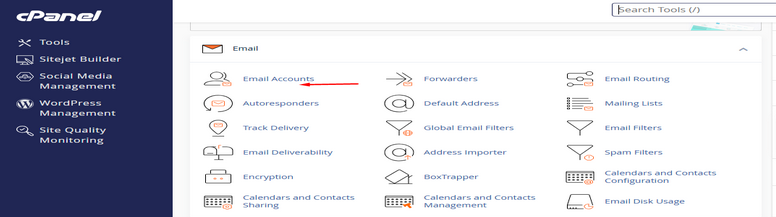
3. Create a New Email Account:
On the Email Accounts page, click the + Create button.
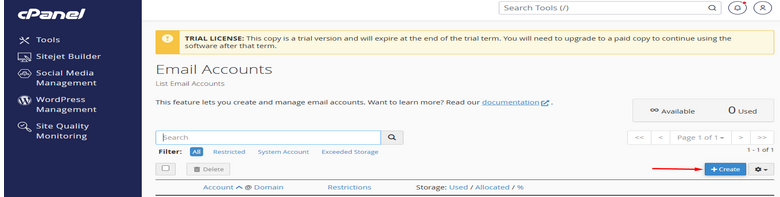
4. Fill Out the Email Account Information:
Domain: If you have multiple domains, select the domain for which you want to create the email account from the drop down list.
Username: This will be the first part of your email address (e.g., info, contact, support).
Password: Enter a strong password for your email account. You can either type it manually or click Password Generator to generate a secure one.
Mailbox Quota: Set the storage limit for the email account. You can set a specific limit (e.g., 1GB) or select Unlimited for no storage limit.
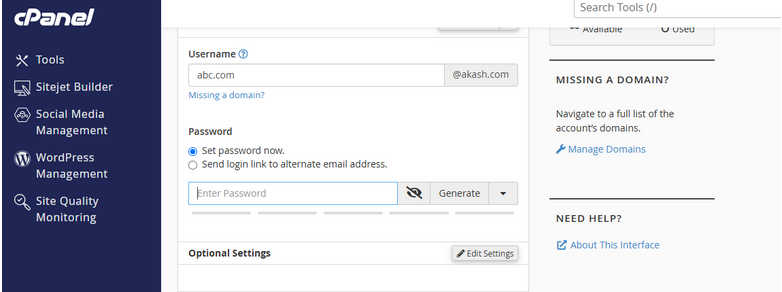
5. Create the Account:
Once all the details are entered, click the Create button.

6. Account Created:
After a few seconds, you will see a confirmation message saying the email account has been created successfully.