1. Log in to WHM:
Go to yourdomain.com:2087 or yourserverip:2087 to access WHM.
Log in using your root or reseller credentials.
2. Go to the “List Accounts” Section:
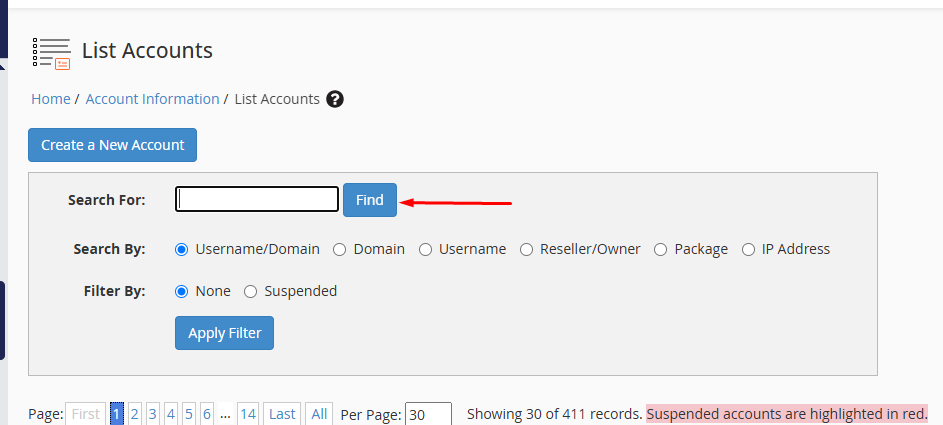
In the WHM dashboard, type “List Accounts” in the search bar or find it under the Account Information section.
Click on List Accounts.
3. Find the Account You Want to Modify:
Locate the cPanel account whose primary email account you want to change. You can search for the account by domain name, username, or other identifiers.
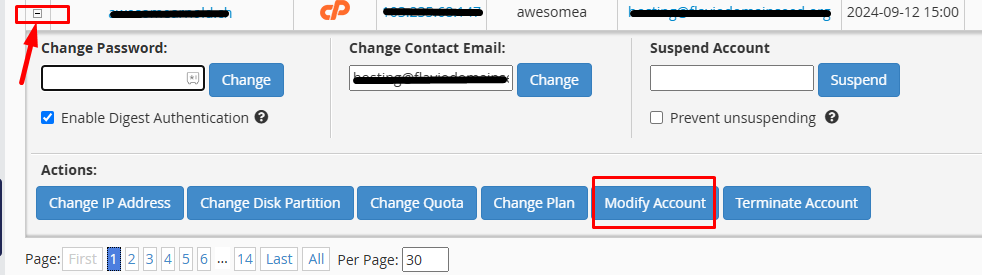
Once you find the account, look for the + icon or the Modify Account link next to the account.
4. Modify the Account:
Click on Modify Account for the selected cPanel account. This will open the Modify an Account page.
5. Change the Primary Email Account:
In the Modify an Account page, find the Primary Email field. You will see the currently set primary email account.
You will not see an option to change it directly from this page. To change the primary email account, you will need to either:
- Remove the current primary email address and create a new one.
- Change the default email address for the account (which can be done via cPanel after you log in).
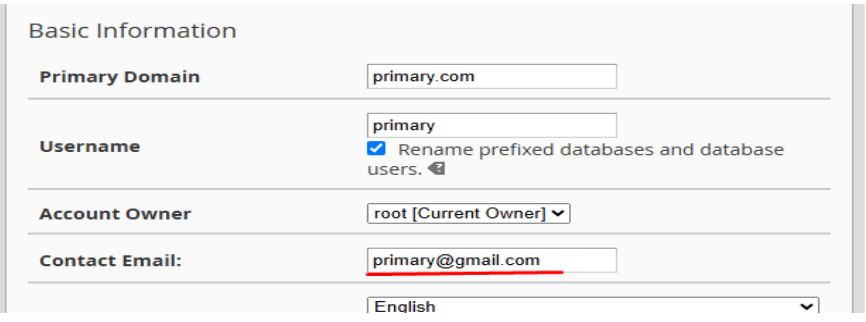
6. Save Changes:
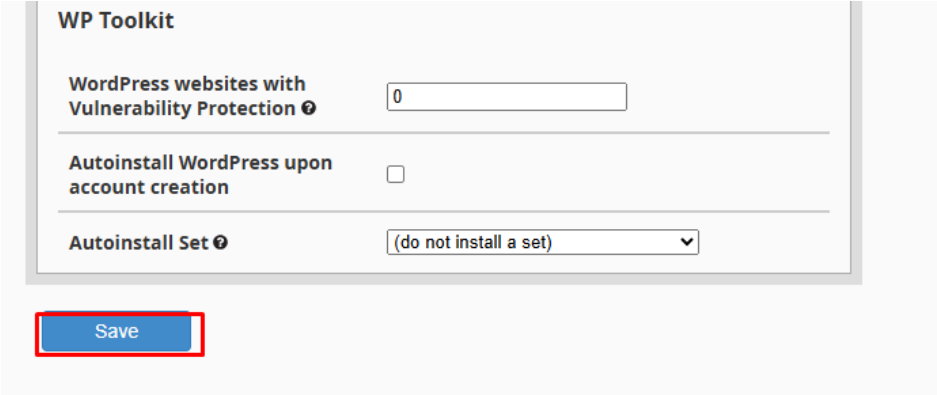
After updating the email, make sure to click the “Save Changes” button to apply the changes.
Scroll down for save Button.