
If you want to change the IP address for a specific cPanel account (for example, to assign it to a dedicated IP address)
1. Log in to WHM:
Open your browser and go to : https://yourserverip:2087.
Log in using your root credentials.
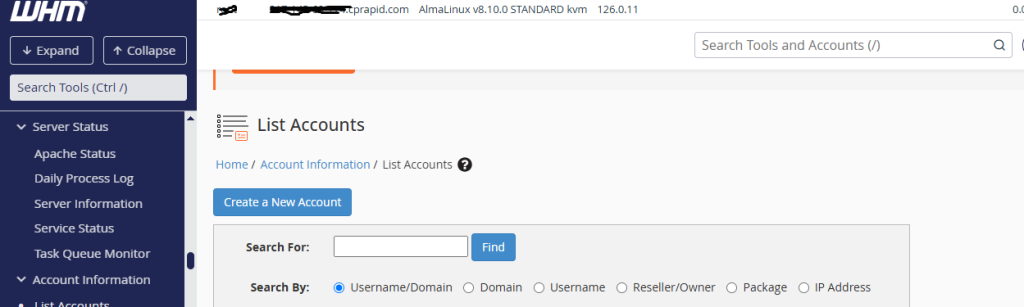
2. Go to “List Accounts”:
In the Account Information section of WHM, click List Accounts.
3. Select the Account:
Find the account for which you want to change the IP address.
Click the + button or the Modify Account link next to the account.
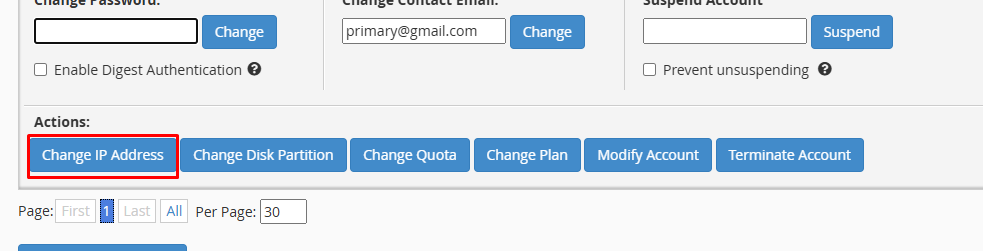
4. Change the IP Address:
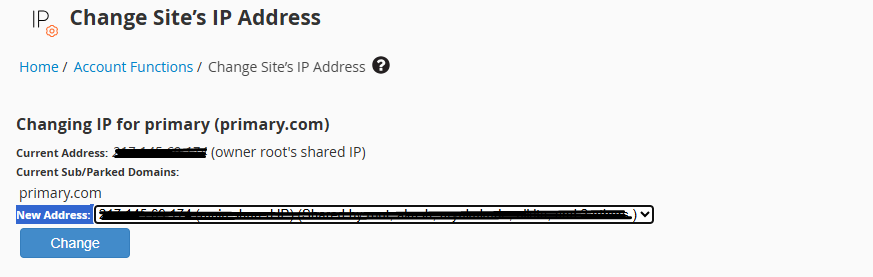
On the Modify an Account page, you will see the IP Address field.
Click the dropdown and select the new IP address you want to assign to the account.
Note: If the IP you want isn’t listed, make sure it’s already added to your server via:
WHM > IP Functions > Add a New IP Address.
5. Save Changes:
Once you’ve selected the new IP, scroll down and click Save to apply the changes.
The account will now be associated with the new IP address.